How to Create Your Own Disney Pixar Pet Portrait
Candice / 2 December 2025

Let us show you how to create your own Disney Pixar–inspired pet portrait using Bing Image Creator Online... and turn it into fun RapidStudio products.
If you’ve ever wished your dog or cat could be the star of their own Pixar movie… good news – they can!
Thanks to Bing Image Creator, you can turn a normal pet photo into a Disney–Pixar-style portrait in just a few minutes.
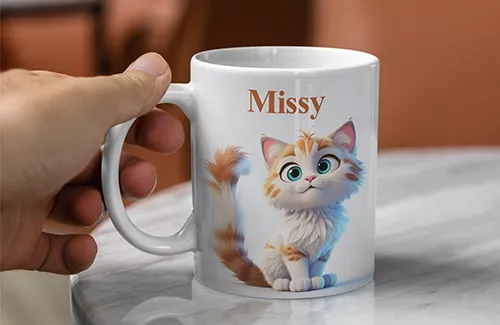
In this simple guide, we’ll show you exactly how to do it, using my own dog as the example. Once your portrait is created, you can download it and use it on RapidStudio products like canvas prints, mugs, magnets, notebooks, calendars, keyrings, and more. This makes an incredible gift – perfect for a pet lover, a child with their own furry best friend, or anyone who treats their pet like family.
Let’s get started!
Step 1 – Visit Bing Image Creator
Click here to begin: https://www.bing.com/images/create
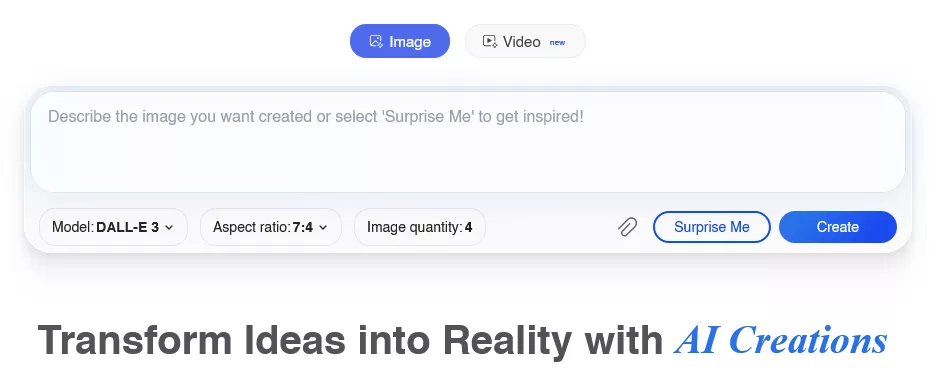
You’ll see a page that looks similar to this, with a big prompt box ready for your description.
Step 2 – Upload a Photo of Your Pet
Click the small paperclip icon under the prompt box and upload a clear, well-lit photo of your pet.
📌 Tip: Choose a photo where your pet’s face is clearly visible. This helps the AI keep their markings and personality.
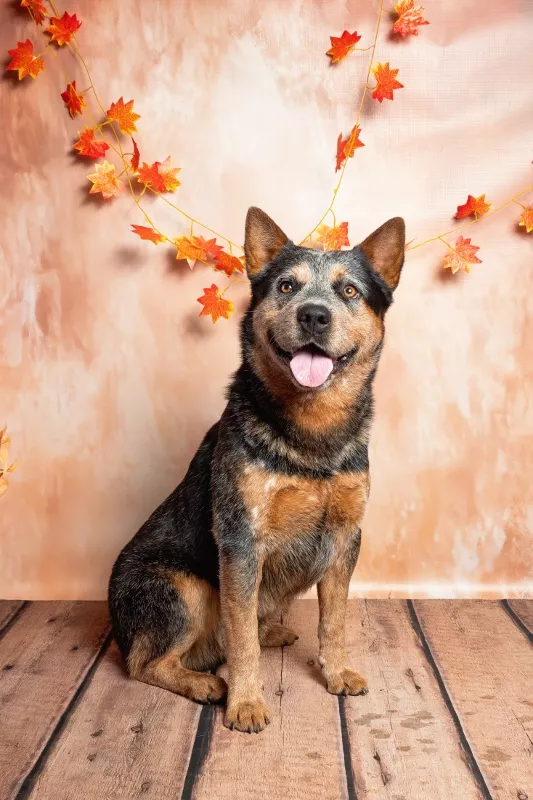
Here’s the photo I used of my cattle dog:
Step 3 – Choose Landscape Format
Change the Aspect Ratio to 7:4 Landscape. This gives you a nice wide landscape layout that works beautifully for canvas prints and calendars, and can be easily cropped for mugs and notebooks.
Step 4 – Paste Your Pixar Prompt
To help your pet come out looking like a true Pixar character — but still recognisable as themselves — you need a good prompt.
Here’s the exact final prompt I used:
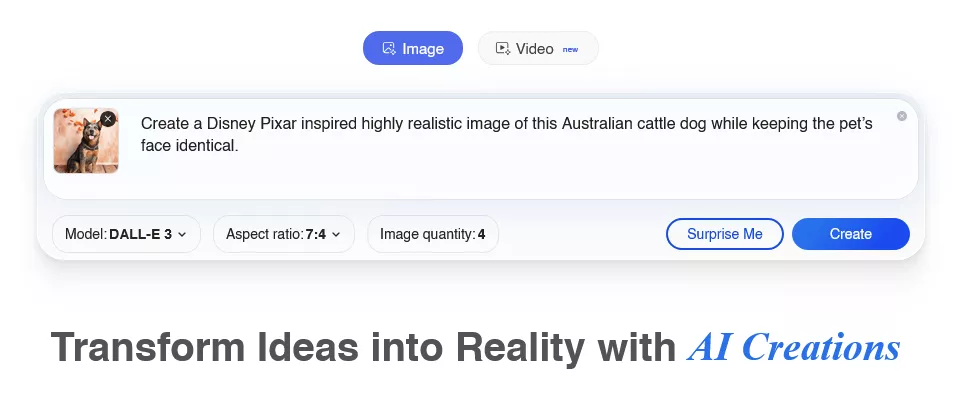
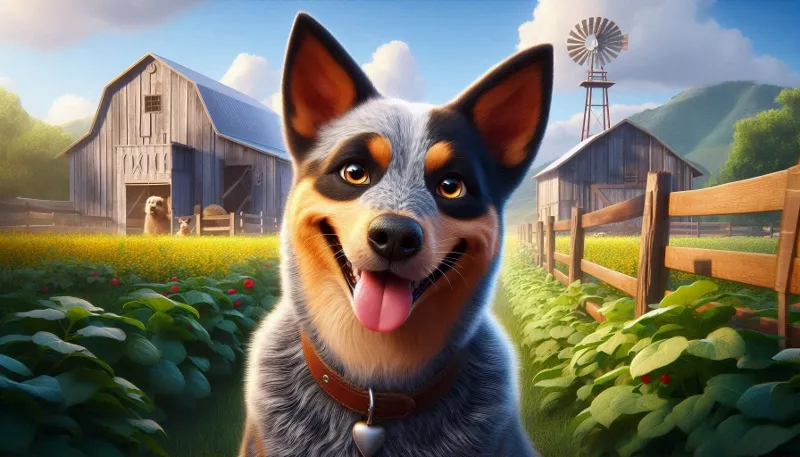
“Create a Disney Pixar inspired highly realistic image of this Australian cattle dog in a farm-type environment while keeping the pet’s face identical.”
You can copy this prompt exactly, or play around with the wording to get different effects. Try changing the setting (beach, forest, cosy lounge, white background), the art style (more cartoon, more realistic, softer colours), or the vibe (hero pose, action shot, relaxed portrait) until you get something that feels perfect for your pet.
Paste your prompt into the box – it will now look something like this:
Step 5 – Click Create
Bing will start generating your images.
In a few seconds, you’ll see your Pixar-style portraits appear.
Here’s one of the results I got from my prompt:
Step 6 – Recreate Until You Find the Perfect Portrait
One of the best things about Bing Image Creator is that you’re never limited to the first set of images it gives you. If the style isn’t quite right — or your pet’s face doesn’t look close enough yet — you can simply click Recreate to generate a fresh batch of options.
Step 7 – Download Your Favourite Image
Once you see an image you love:
1. Click it
2. Press Download
3. Save it to your computer or phone
You now have your very own Pixar pet portrait!
Step 8 – Turn It Into a RapidStudio Print or Gift
Now the fun really starts!
Upload your pet portrait to any of our personalised products:
✔ Canvas prints
✔ Photo mugs
✔ Keyrings
✔ Fridge magnets
✔ Notebooks
✔ Calendars
✔ Diaries
Your Pixar pet portrait will look AMAZING on any of them.
Bing Image Creator makes it easy for anyone – even total beginners – to create gorgeous Pixar-style illustrations of their pets. And at RapidStudio, we LOVE seeing the creative things our customers make.
Give it a try, and tag us when you print your masterpiece!
We can’t wait to see your Pixar pets come to life.